
LMS Quiz Attempt
1. Initial Access and Authentication Protocol
The integrity of academic assessments begins with a secure and centralized authentication process. Ziauddin University utilizes a synchronized credentialing system where the primary university portal and the Learning Management System (LMS) share a unified database. This strategic alignment ensures a frictionless transition for students, allowing them to move from administrative portals to active learning environments without the burden of managing multiple identity sets.
Actionable Steps
- Gateway Entry : Initiate the process by accessing the primary gateway at it.zu.edu.pk. From the student-facing modules, select the LMS option to proceed to the dedicated learning environment.
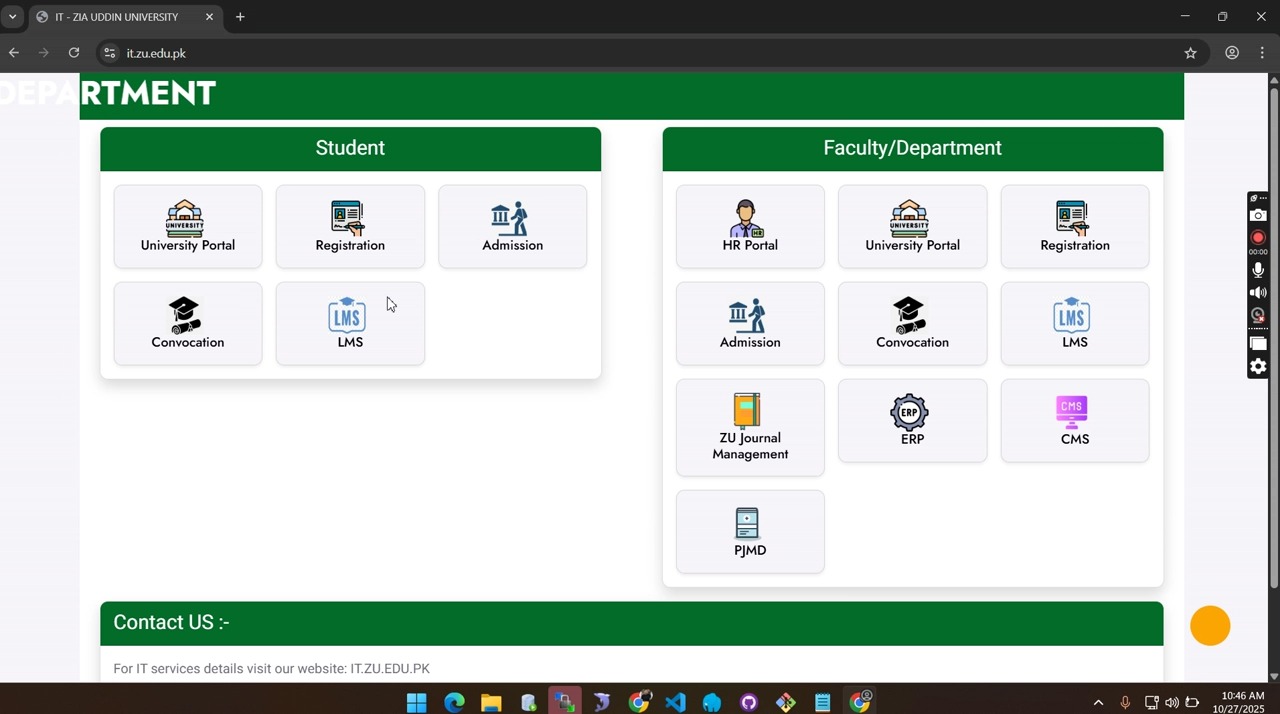
- User Authentication : Upon reaching the login interface, enter your designated username and password. These credentials must match your existing university portal data to ensure successful synchronization. Click “Log in” to access your personalized student dashboard.
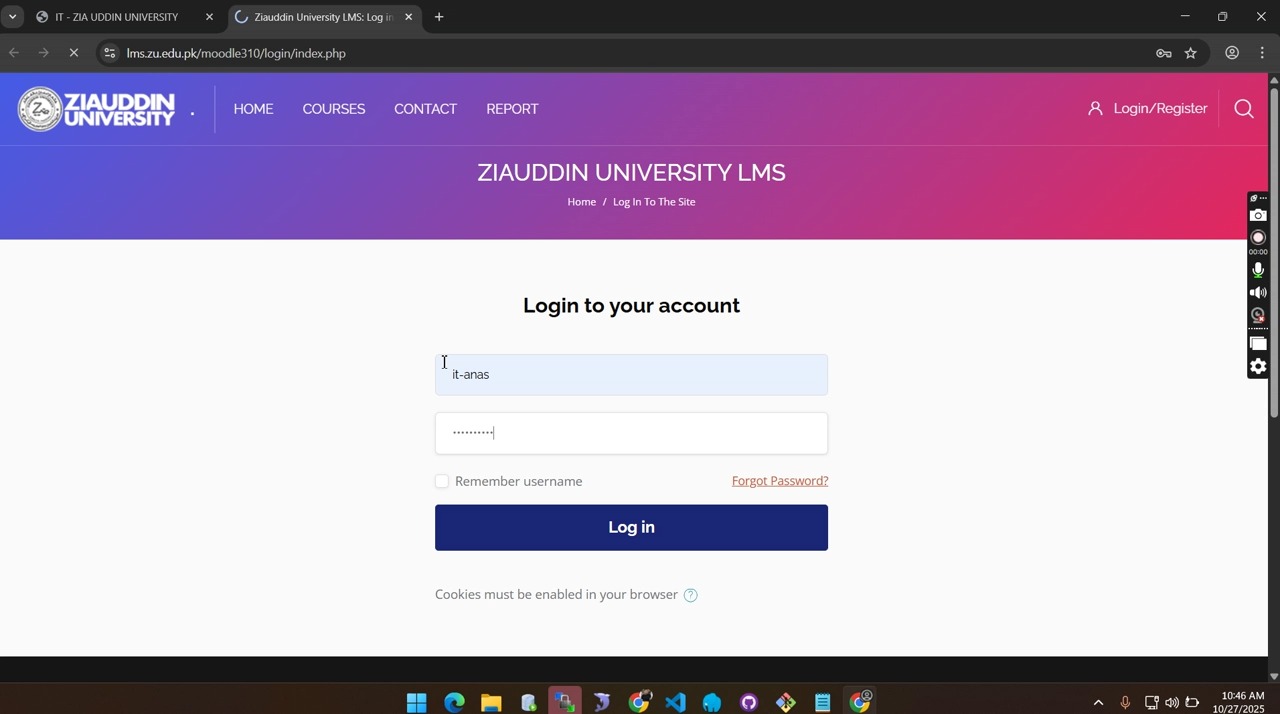
Analytical Layer: Technical Prerequisites
As explicitly mandated on the authentication interface, the system warns that “Cookies must be enabled in your browser.” From a systems perspective, this is a non-negotiable requirement for session stability. Cookies allow the LMS to maintain a persistent, secure handshake between the server and the local machine, preventing catastrophic session timeouts or data loss during a timed, high-stakes assessment.Once authenticated, the system transitions the user into a structured dashboard environment designed for efficient academic management.
2. Navigating the Academic Dashboard and Course Selection
The architecture of the student dashboard is engineered to minimize cognitive load by organizing academic content into logical course hierarchies. By presenting enrollments through a clean, card-based interface, the system allows students to quickly identify pending assessments, ensuring that mental energy is preserved for the examination rather than the navigation of the platform.
Actionable Steps
- Accessing Courses : From the primary sidebar or the central dashboard, select the “My courses” tab to view your active enrollments.
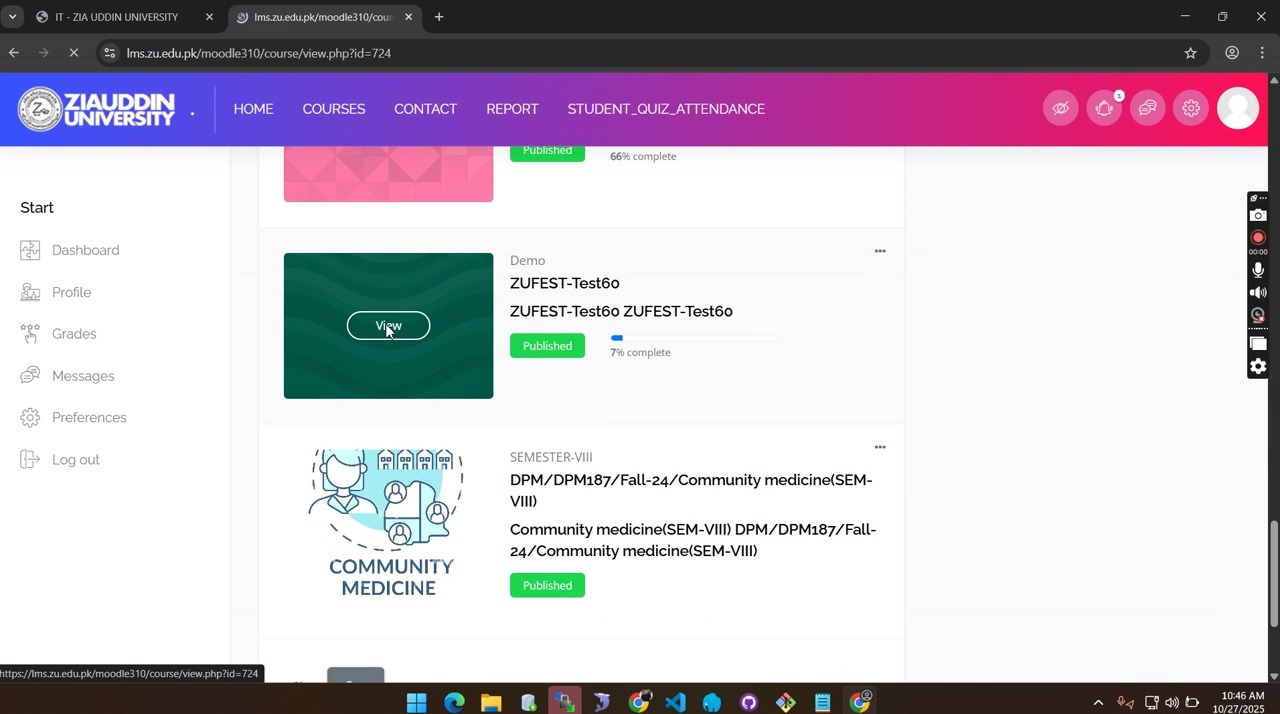
- Course Entry : Locate the specific course card for your assessment (e.g., “ZUFEST-Test6o”). To reflect the platform’s optimized UX workflow, click the specific “View” button within the course card to enter the dedicated course environment.
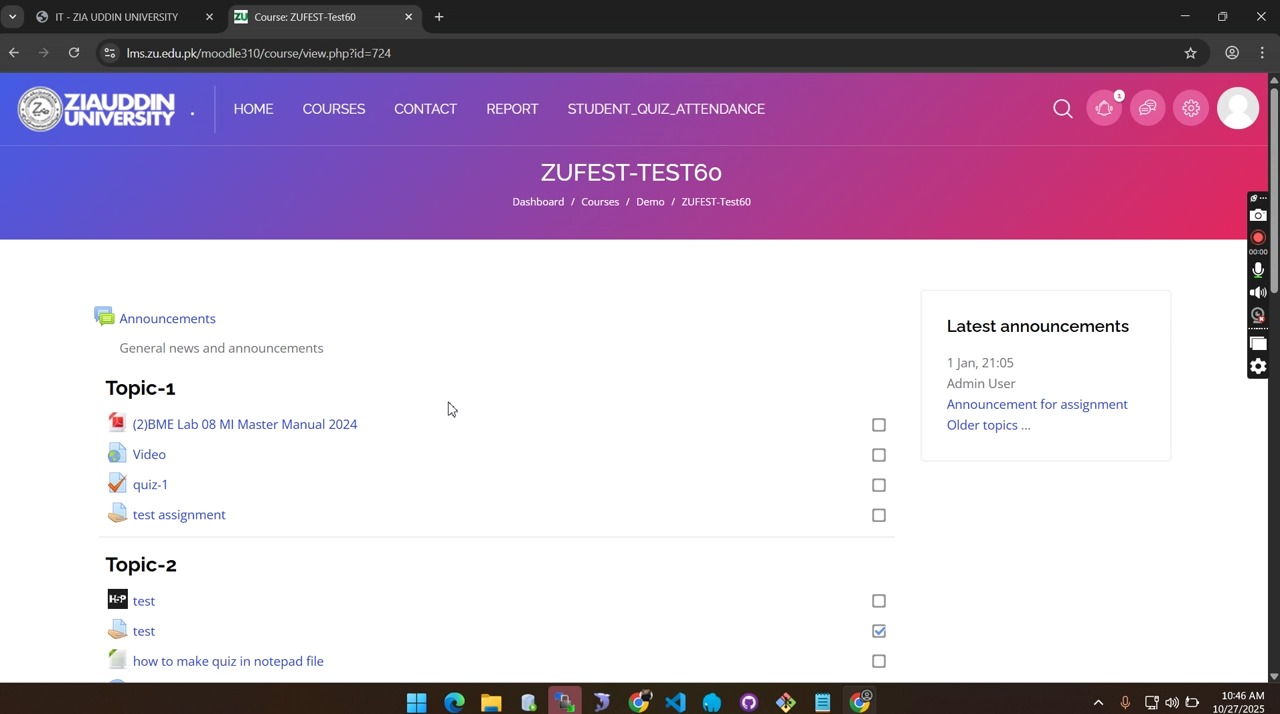
Analytical Layer: Information Hierarchy
The strategic placement of the “Latest announcements” block on the dashboard serves as a critical information layer. Before entering a quiz, students must review these updates. As seen in the system environment, these blocks often contain vital administrative instructions or last-minute adjustments from the “Admin User” that serve as the final layer of guidance before an assessment window begins.Following the selection of the course container, the user must navigate the internal content hierarchy to identify the specific activity module.
3. Identification and Initiation of the Quiz Activity
The internal structure of a Ziauddin University course page is organized by topics, sections, or weeks. This systematic layout ensures that all related materials—lectures, assignments, and quizzes—are grouped logically. Before initiating an attempt, it is vital to verify the administrative parameters displayed on the module’s landing page to avoid a premature start.
Actionable Steps
- Locate Activity : Scroll through the course page to the relevant “Topic” or “Week” and identify the quiz activity module, such as “quiz-1.”
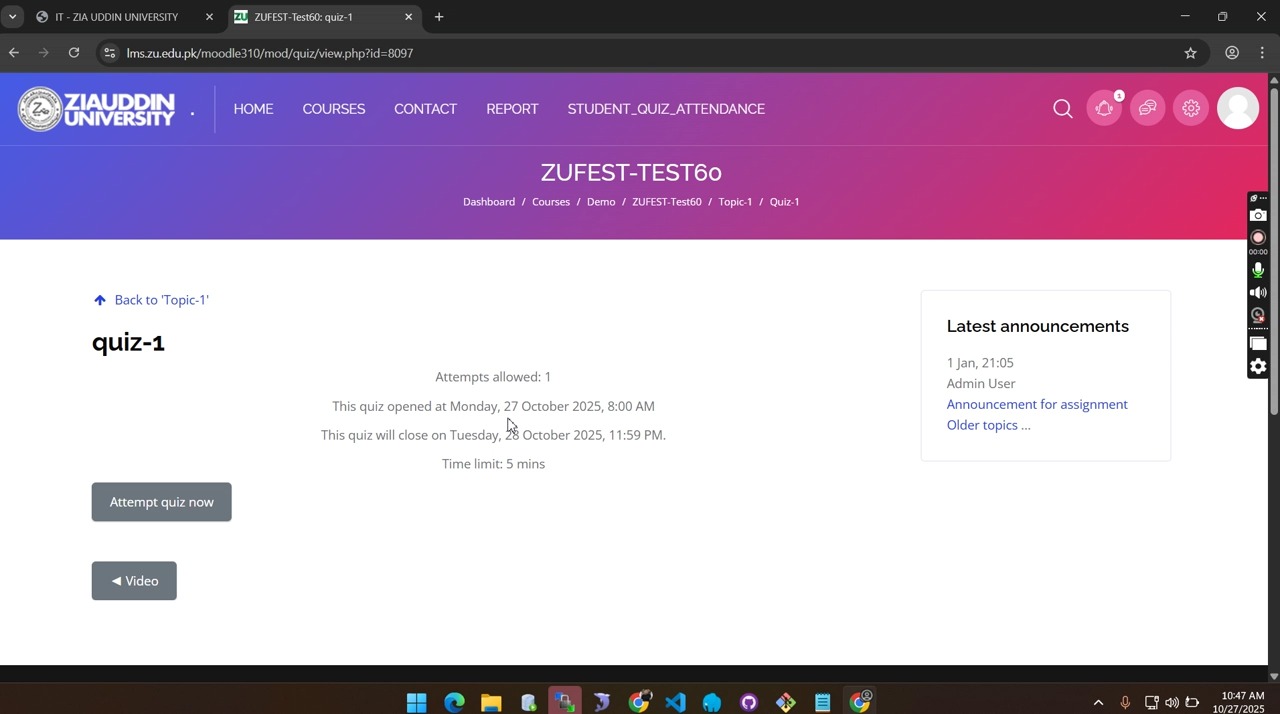
- Review Landing Page : Clicking the quiz title opens the “Quiz Landing Page.” This screen provides essential metadata that dictates your strategy. For example, as seen in the system data for quiz-1, the window opened at Monday, 27 October 2025, 8:00 AM , with a strict “Time limit: 5 mins” and “Attempts allowed: 1.”
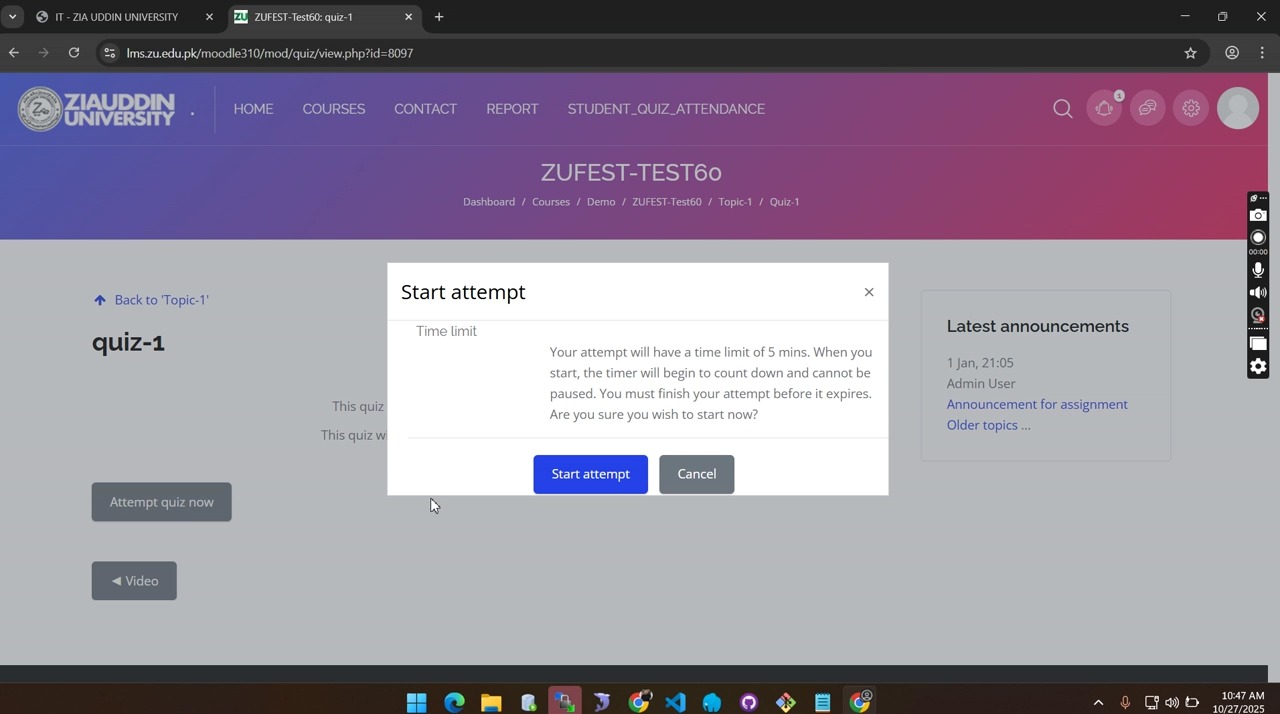
- Confirm Initiation : Click “Attempt quiz now.” A confirmation dialog will appear, titled “Start attempt.” This provides a final warning that the timer will begin to count down and cannot be paused. Click “Start attempt” only when you are prepared to begin.
Analytical Layer: Strategic Constraints
The “Time limit” and “Attempts allowed” parameters are the primary dictates of the assessment’s pace. A single allowed attempt necessitates high preparation, while a five-minute limit (as observed in this instance) requires a rapid processing speed. Understanding these factors beforehand allows for better time allocation across the examination pages.Once the attempt is started, the interface transitions into the active assessment environment.
4. Assessment Interface and Response Management
The UX design of the active quiz interface focuses on clarity and utility. By integrating progress indicators and navigation shortcuts, the system assists students in managing their time effectively under pressure, providing clear visual feedback on their current standing within the assessment.
Actionable Steps
- Response Entry : Questions are presented with clear choice indicators. Select your response and use the “Next page” button to progress through the assessment.
- (Note: For privacy compliance, the student name in the navigation block of the following images must be redacted in production assets.)
- Utilize Navigation Block : The “Quiz navigation” block allows for non-linear movement. This enables students to jump between questions to review or complete them as needed.
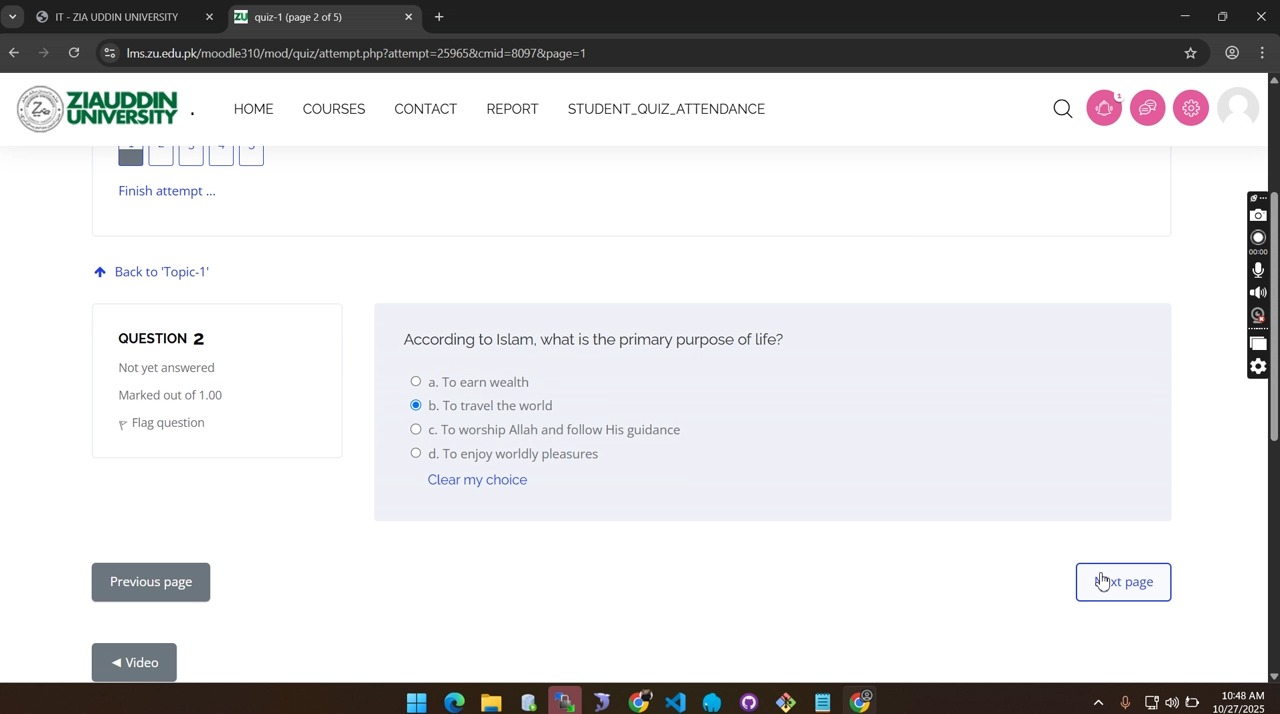
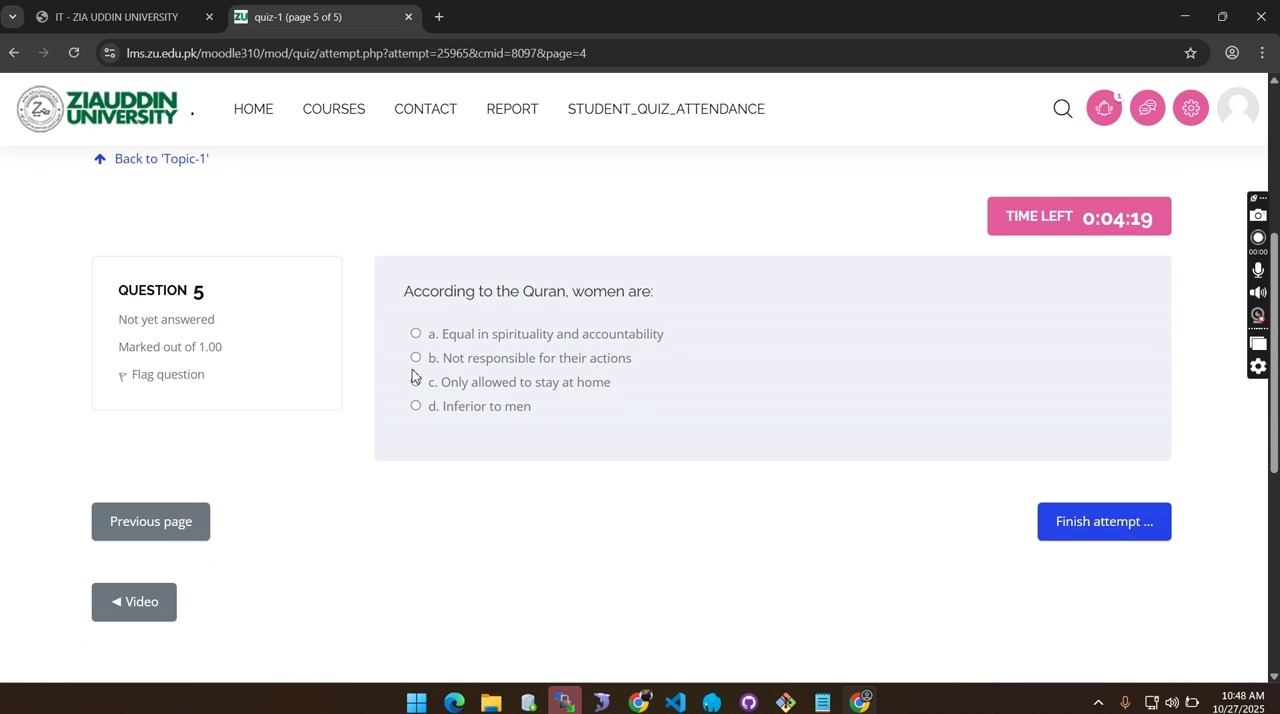
- Iterative Progression : Continue through the assessment pages (e.g., Question 2 through Question 5), ensuring each response is captured by the system.
Analytical Layer: Uncertainty Management
The interface provides a “Flag question” feature, which serves as a cognitive tool for marking items of uncertainty. Crucially, the “Quiz navigation” block provides visual feedback for these flags, often utilizing shading or specific borders to create a visual map of items requiring further review. Coupled with the “Finish attempt…” link, these features empower students to manage their workload methodically, ensuring no question is left unaddressed before the final submission.After answering the final question, the student moves to the summary and submission phase.
5. Submission Finalization and Result Verification
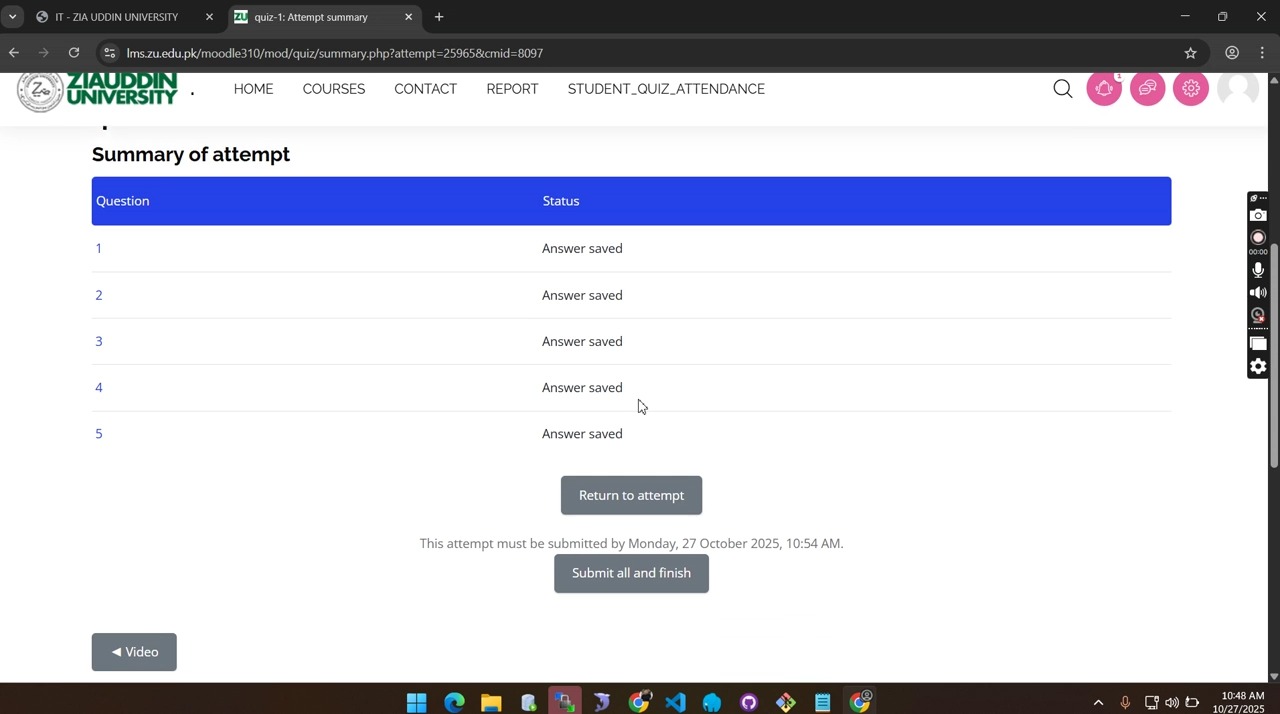
The “Summary of attempt” phase acts as a vital fail-safe mechanism. It provides a comprehensive overview of the status of all questions, allowing students to verify that every answer has been “Saved” before crossing the point of no return in the submission process.
Actionable Steps
- Review Summary : Examine the “Summary of attempt” table to confirm that every question reflects a status of “Answer saved.”
- Initiate Submission : Click the “Submit all and finish” button located at the bottom of the summary table.
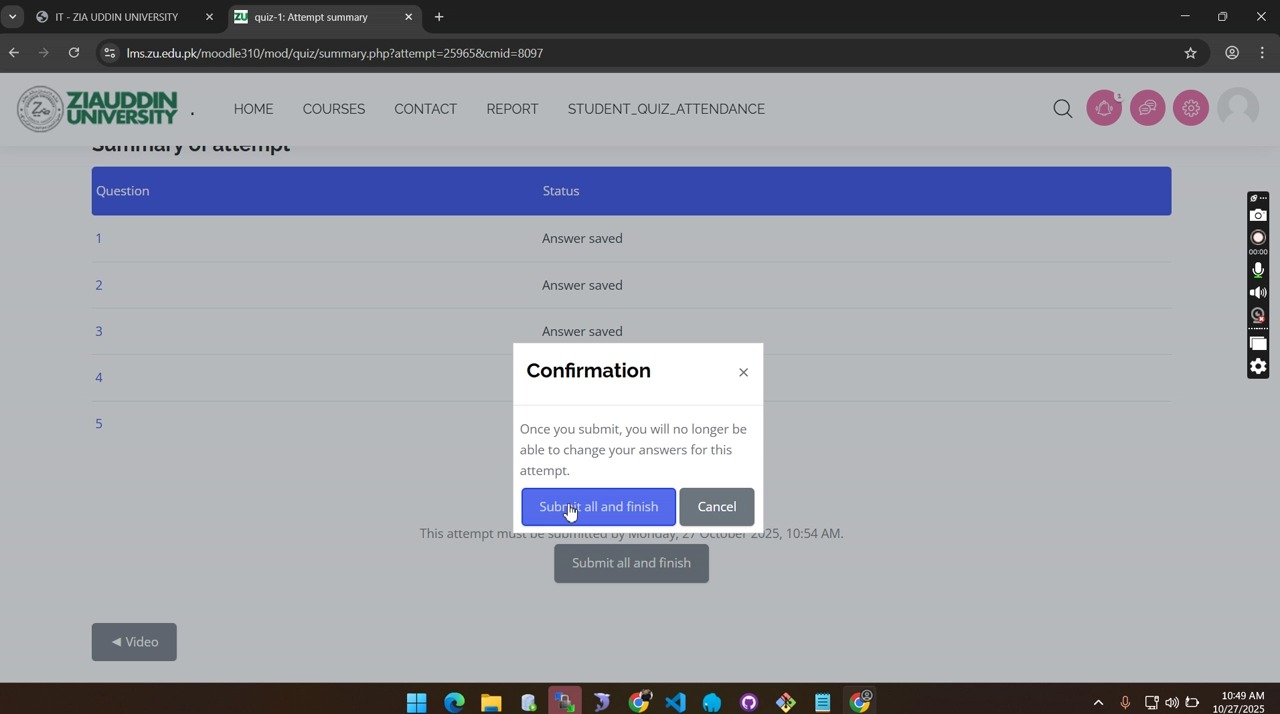
- Final Confirmation : A “Confirmation” pop-up dialog will appear. This is the final system barrier to prevent accidental submissions. Click the blue “Submit all and finish” button to finalize your work.
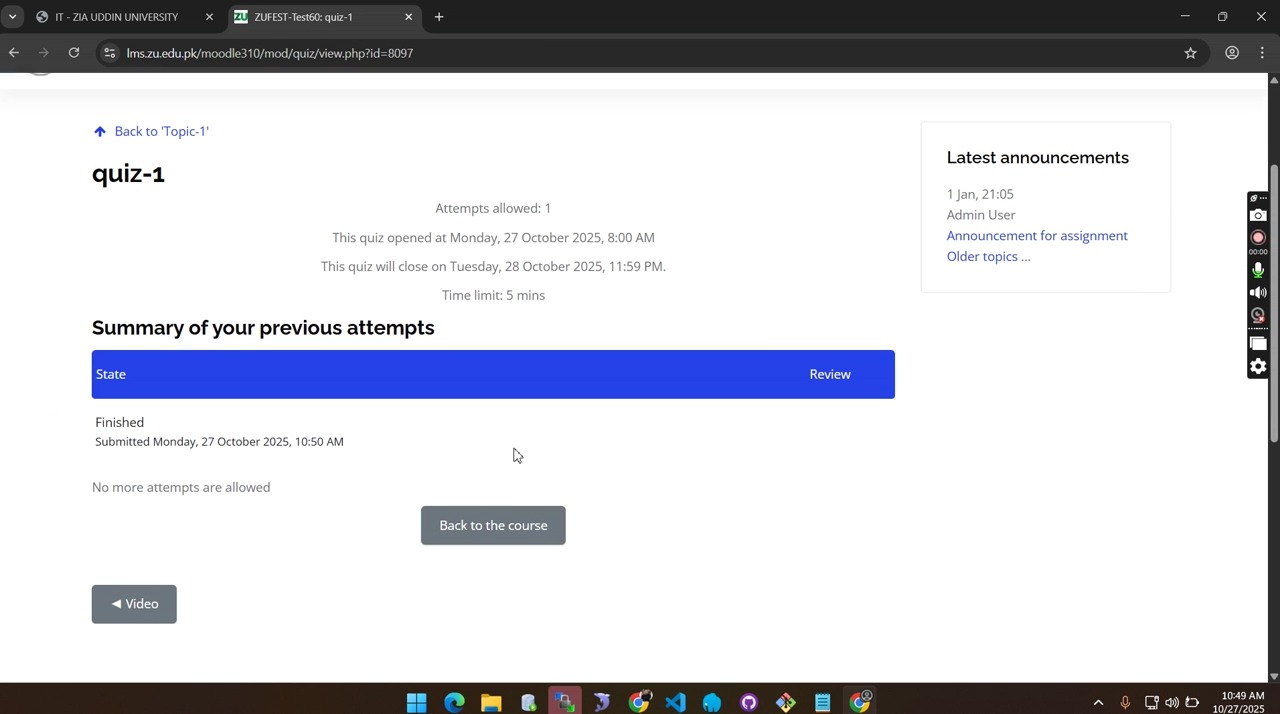
- Verification of Completion : After the final submission, the system displays the “Finished” state.
Analytical Layer: Official Record of Completion
The appearance of the “State: Finished” and the specific timestamp—recorded in this instance as “Monday, 27 October 2025, 10:50 AM” —serves as your official digital receipt. These data points are critical for academic accountability, providing irrefutable proof that the assessment was completed within the allocated window and successfully recorded by the university’s systems.Adhering to this chronological workflow ensures that the technical and administrative requirements of the Ziauddin University LMS are met, facilitating academic success through systematic execution.